
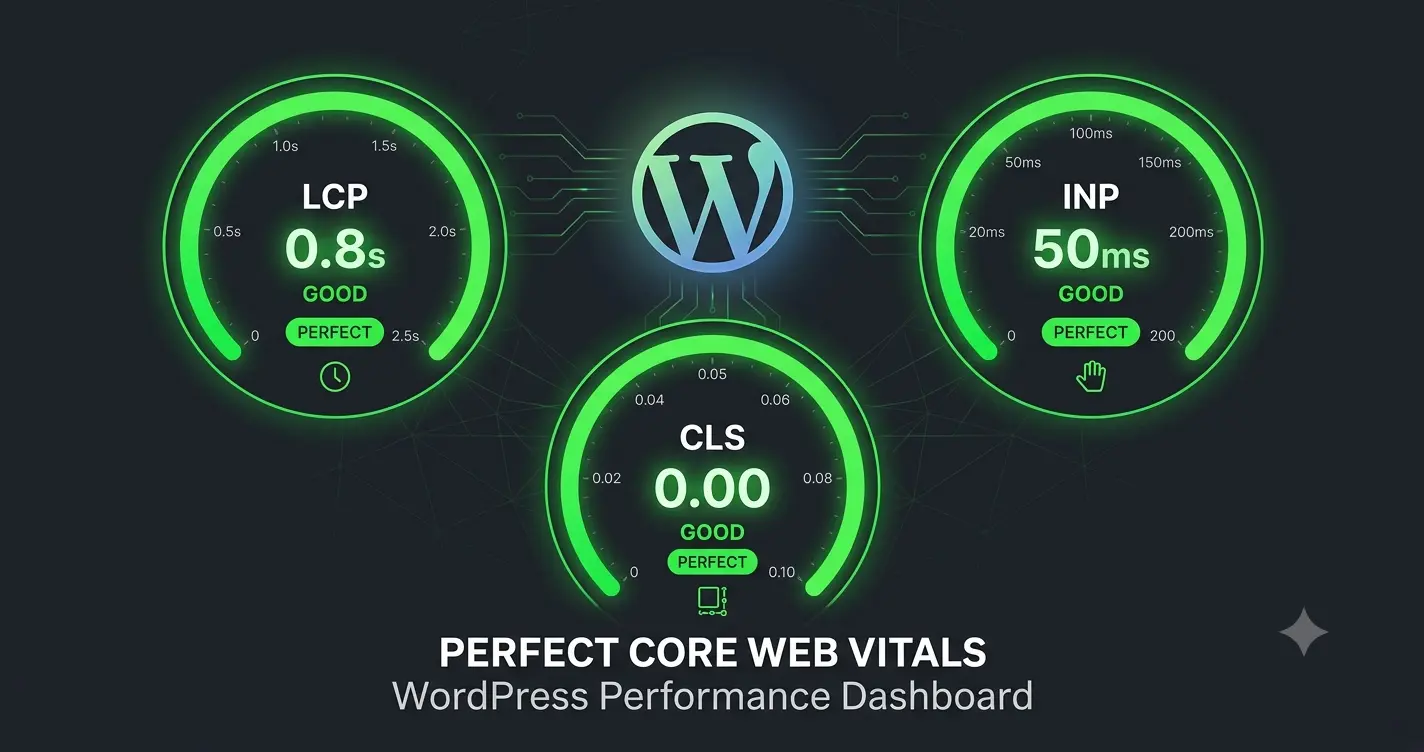
A slow website actively drives away traffic, destroys your conversion rates, and lowers your search engine rankings. Google uses Core Web Vitals as an official ranking signal, meaning server response times and layout stability directly impact your visibility.
Optimizing WordPress for speed requires a systematic approach. You must align your hosting environment, server caching layers, and asset delivery to consistently load pages in under two seconds.
Step 1: Establish High-Performance Web Hosting
Your caching configuration is only as strong as your hosting provider’s hardware foundation. If you host your application on an overloaded shared server, no optimization plugin can solve the baseline hardware latency.
For commercial sites, pass past entry-level plans and invest in a dedicated environment like a Virtual Private Server (VPS) or a scalable cloud network. These platforms grant dedicated CPU cycles and isolated memory allocations. This isolation ensures your database processes dynamic requests instantly, without resource starvation caused by neighboring sites.
Furthermore, select a provider utilizing modern server architectures like NGINX. NGINX processes concurrent traffic efficiently, handling traffic spikes smoothly while maintaining a low memory footprint.
Step 2: Layer Your Server and Application Caching
Caching dramatically reduces server load by turning dynamic, database-heavy PHP pages into static HTML files. Instead of executing complex scripts for every visitor, the server delivers the pre-compiled file instantly. To achieve maximum speed, you must deploy a dual-layer caching stack.
Server-Level Cache (The First Line of Defense)
Server caching intercepts incoming requests before they ever touch your WordPress application code. Configuring NGINX caching via your hosting dashboard allows static assets and pages to serve with near-zero processing lag. It keeps server CPU utilization minimal during sudden traffic events.
Application-Level Cache (The Optimization Layer)
An application plugin handles specific WordPress-side performance tweaks. It manages critical CSS generation, code minification, and database optimization.
[The Caching Golden Rule]
When modifying your design or updating core pages, always clear your caches in a strict sequence:
1. Clear the NGINX server cache first.
2. Clear the WordPress application cache second.
Reversing this specific cleanup order locks stale server data underneath fresh application files, causing visual breakage for your visitors.
Step 3: Optimize Core Web Vitals Metrics
Google evaluates your user experience through three specific performance metrics. You must optimize your asset delivery to clear these individual benchmarks cleanly.
Largest Contentful Paint (LCP)
LCP measures how fast the main content of a page renders on the screen. Slow LCP is usually caused by heavy images, unoptimized font styles, and render-blocking scripts.
To fix this, compress all images into lightweight WebP formats before uploading them to your media library. Implement lazy loading so background media files do not load until a user scrolls down the page. However, ensure you exclude your primary featured image from lazy loading so it appears immediately above the fold.
Interaction to Next Paint (INP)
INP tracks your website’s responsiveness to user inputs, such as clicking a menu button or interacting with a checkout form. Lagging responsiveness occurs when heavy JavaScript blocks the main browser thread.
To optimize INP, delay non-essential JavaScript execution. Tracking codes, chat modules, and non-critical animation scripts should not load until the user actively touches the screen or scrolls. This strategy frees up processing space for essential browser tasks.
Cumulative Layout Shift (CLS)
CLS measures visual stability by tracking how much page elements jump around as the layout loads. Severe layout shifts occur when image elements lack defined height and width attributes, forcing the text block to shift abruptly once the media downloads.
Always declare explicit dimensions on your logo and embedded layout images. Additionally, avoid combining all your CSS and JavaScript files into a single master script. Code combination frequently breaks script execution sequences, scrambles layout fonts, and causes major visual elements to drop out unexpectedly.
Step 4: Streamline and Index Your Database
WordPress relies heavily on its database backend. Over time, your system gathers massive amounts of digital junk, including old post revisions, expired checkout sessions, and spam comments. This accumulation forces server queries to search through thousands of dead rows, slowing down your page build times.
Schedule regular database cleanup cycles. Remove expired transients and purge revision history to keep your database tables lean. A lean database structure processes user actions and processes data paths significantly faster during high-volume sales events.